Graphics editor
Draw where content is made.
Design infographics, icons, blockBuilding block of a page, such as text, image, gallery, map or form. You put pages together from blocks; each block has fields for its content and options for its display. previews and images with photo and text right in the admin – built like the graphics programs you already know, lean for the web and without extra software. A package of its own (MIT), switched on per website.
Video · 1:32
An infographic in 90 seconds.
From “New → Infographic” in the media library to the saved graphic: shapes, website colours, a gradient, type with OpenType, knockout and a small flowchart.
Show transcript: Video: Graphics editor in KLXM Studio
The KLXM Studio graphics editor: infographics and diagrams right in the admin. In the media library: New → Infographic. The editor opens on top. Draw shapes – a rectangle with rounded corners, an ellipse … The swatches know your website’s colours. Adjust gradients with handles right on the canvas. The font picker previews each font live on your text. OpenType features such as true fractions … … and text frames that wrap automatically. Knockout: the text cuts holes into the shape. Flowcharts: connectors stick to shapes and follow when you move them. Saving creates a web version – text becomes outlines, with the file size shown. Done: the graphic is in the media library. Graphics editor in KLXM Studio.
Screenshots
Familiar tools, clear panels.
Screenshots from a test installation with demo values (German interface) – click to enlarge.
-
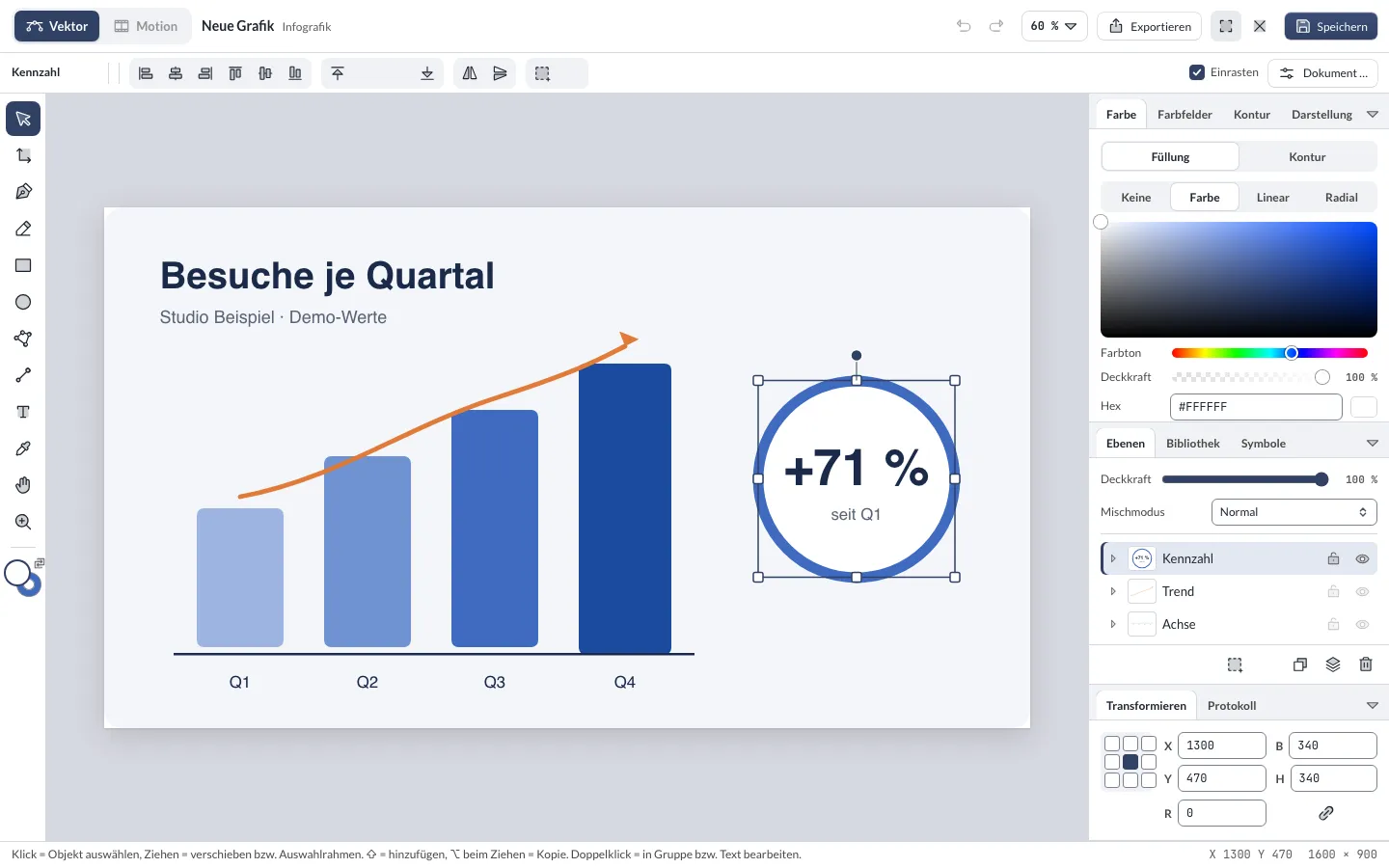
Infographic with a selected key figure: tool bar on the left, colour, layers and transform panels on the right. -
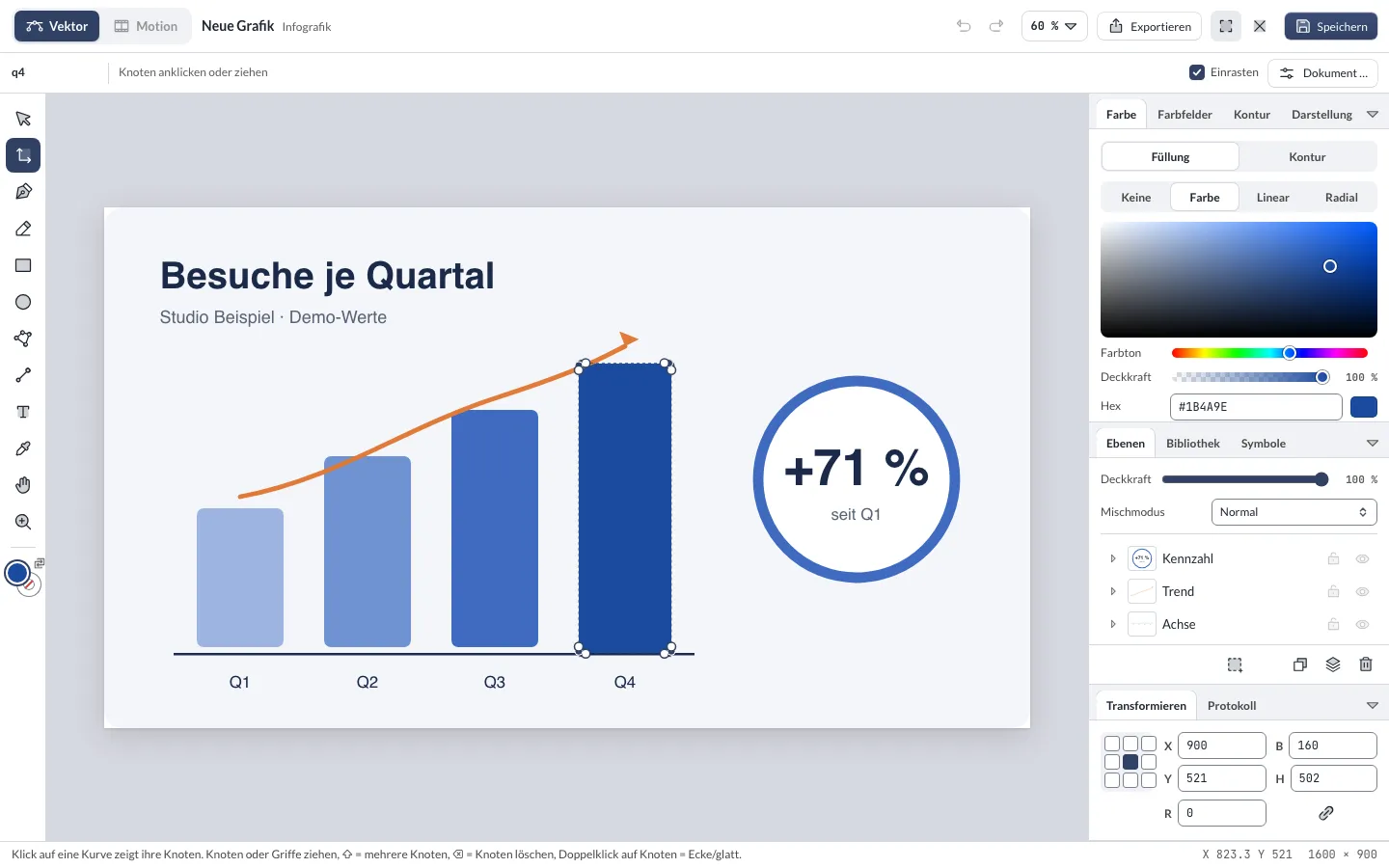
Node tool: move every point of a shape individually. -
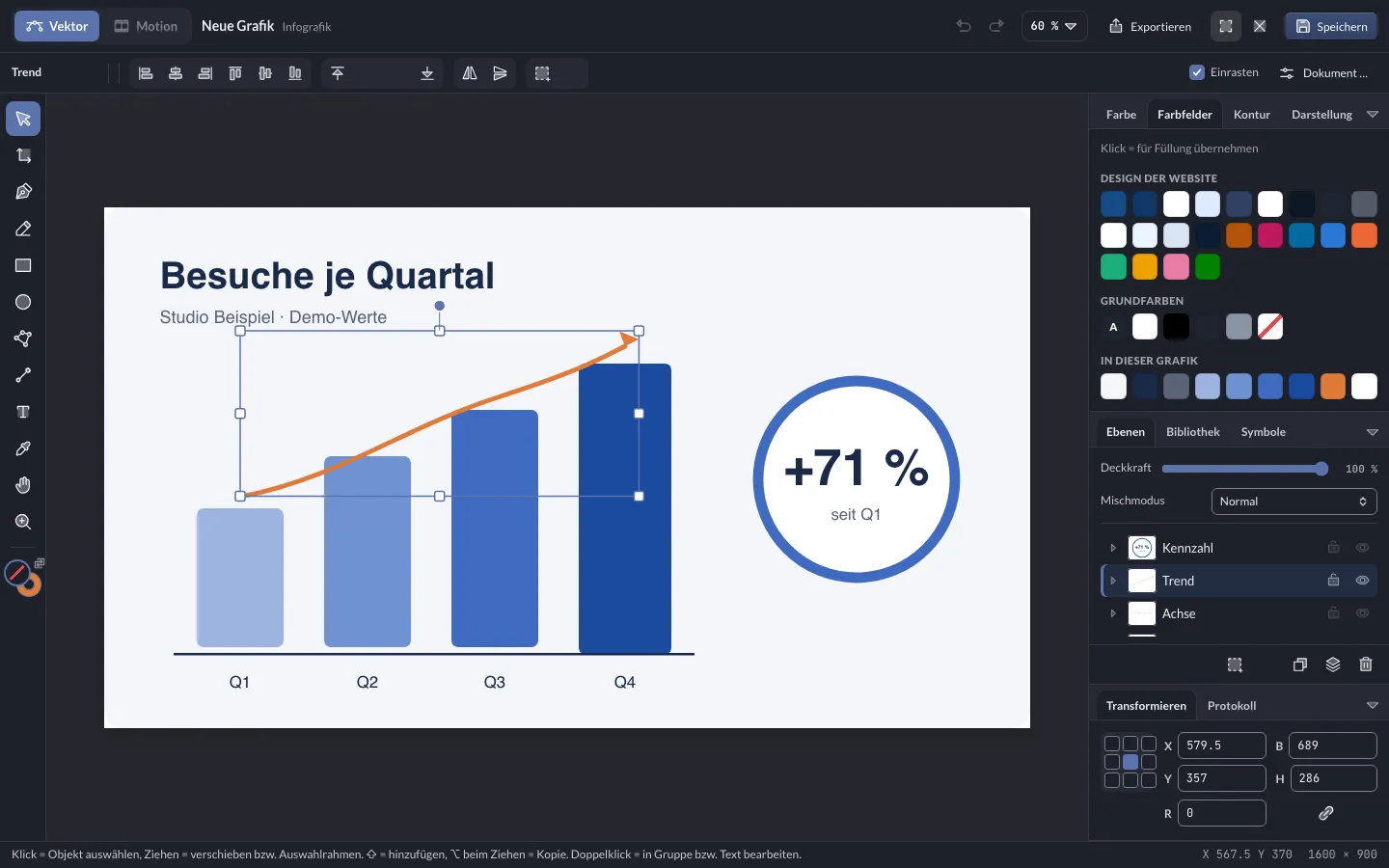
Swatches from the website design – here in the dark colour scheme. -
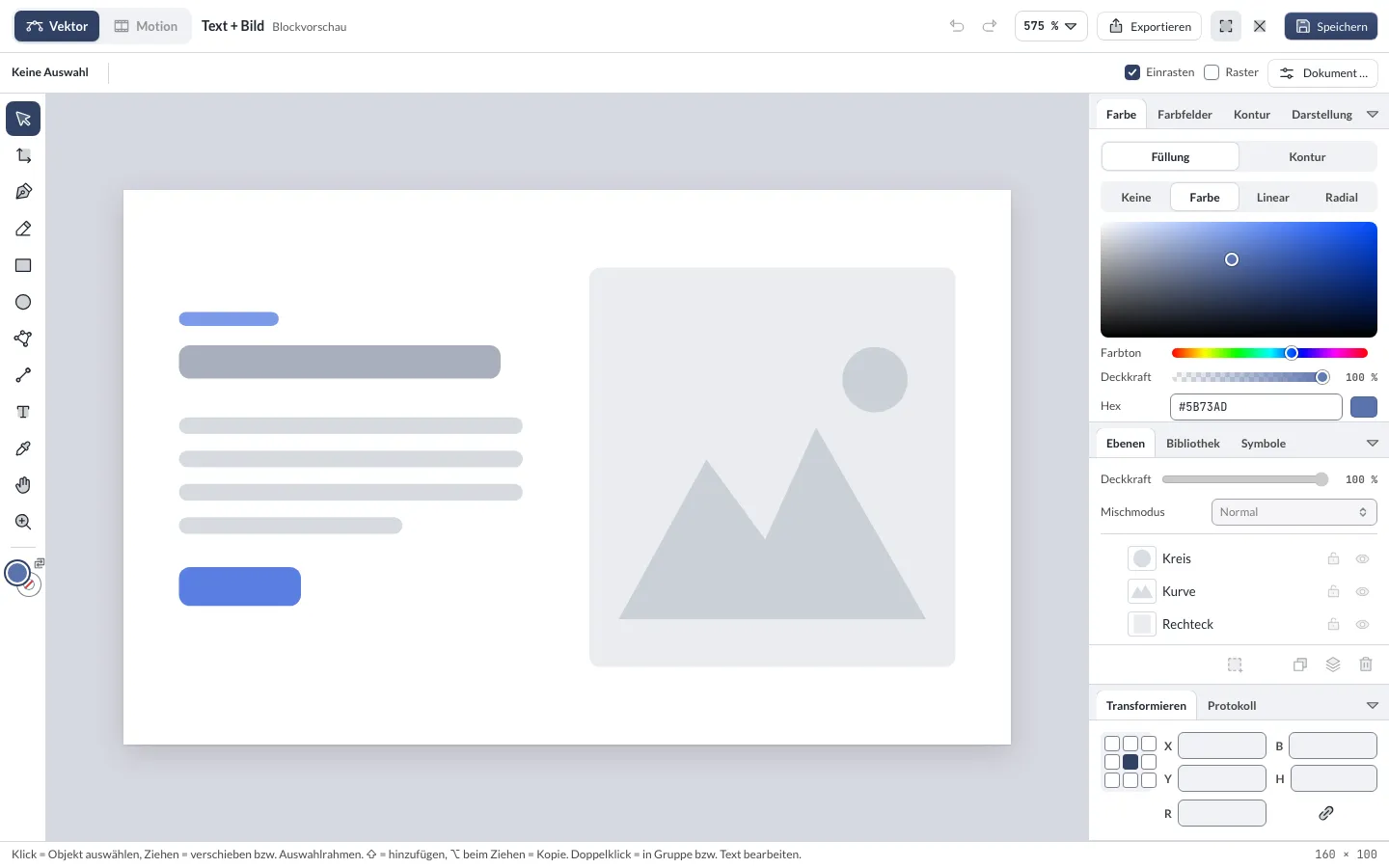
Block preview for “Text + Image” – the editor starts with the kitIn KLXM Studio, the package of design and building blocks for a website: layout, colours, fonts and the matching blocks. A kit can be adapted or switched – the content stays.’s sketch.
Tools
Built like a graphics program.
-
Tool bar
Move, node, pen with Bézier handles, pencil with smoothing, rectangle with corner radius, ellipse, polygon and star, line and arrow, text, eyedropper, hand and zoom – with the familiar keyboard shortcuts.
-
Colour & swatches
Fill and stroke as a colour or a linear or radial gradient. The swatches bring the colours from the website design – so graphics match the brand.
-
Layers
Layers with thumbnails: rename, lock, hide and reorder by dragging. Plus opacity, blend mode and shadow.
-
Align & transform
Snapping, align and distribute, group, flip, convert to curves. Enter position, size and rotation precisely – with a selectable reference point.
-
History & building blocks
Every step appears in the history and can be undone. A library of ready-made building blocks and your own saved ones speed up recurring graphics.
-
Light and dark
The interface follows your account’s appearance. The context bar and status bar show what the selected tool can do.
-
Labelling connectors
With ↵, a double-click or the context menu – the label can be dragged along the line and stays in place when shapes move.
-
Background for text
A surface behind text with colour, opacity, padding, corners and border. It follows the text; the contrast check measures against the surface.
Edit SVGs
Existing graphics – unchanged where you change nothing.
-
Open existing SVGs
In the media library via right-click or in the edit window. Whatever you don’t touch stays character for character – including files from Illustrator, Inkscape or Figma.
-
Saving replaces the file
ID, alt textShort description of an image in the page’s code. Screen readers read it aloud, search engines evaluate it; purely decorative images get an empty alt text.w3.org (opens in a new tab) and all usages are kept; the previous version remains available.
-
Saved clean
Every graphic passes the core’s SVG cleaning on save: no scripts and no external references, lean for the web. Layer names are kept.
-
Pure vectors
Graphics stay sharp at any size, load fast and can be edited again at any time.
Formats & storage
For pages, icons and the block picker.
-
Infographics
Media library → New → Graphic: 16:9, square or free format. The graphic lands in the media library and can be used on pages like any image.
-
Icons
Icons in 24 × 24 format in the text colour – for your own blocks and extensions. They live in a separate store under Media → Graphics, not in the media library.
-
Block previews
Sketches in 160 × 100 format for “+ Insert block”. The editor starts with the kit’s preview; after saving, this website’s block picker shows your version.
-
Window or full screen
The editor opens as a window over the admin. Full screen via button or ⇧⌘F – the choice is remembered.
-
For extensions
Extensions open the editor with one line of JavaScript and receive the saved graphic back.
-
With permissions
Anyone who may upload media can use the graphics editor. Templates are designed by people with the permission “Design templates for images” – by default only the administration.
Personas in pictures
Data, export and images with photos.
Shots from a test installation with demo content (German interface) – click to enlarge. Photo in the living-room example: Curtis Adams, Pexels.
-
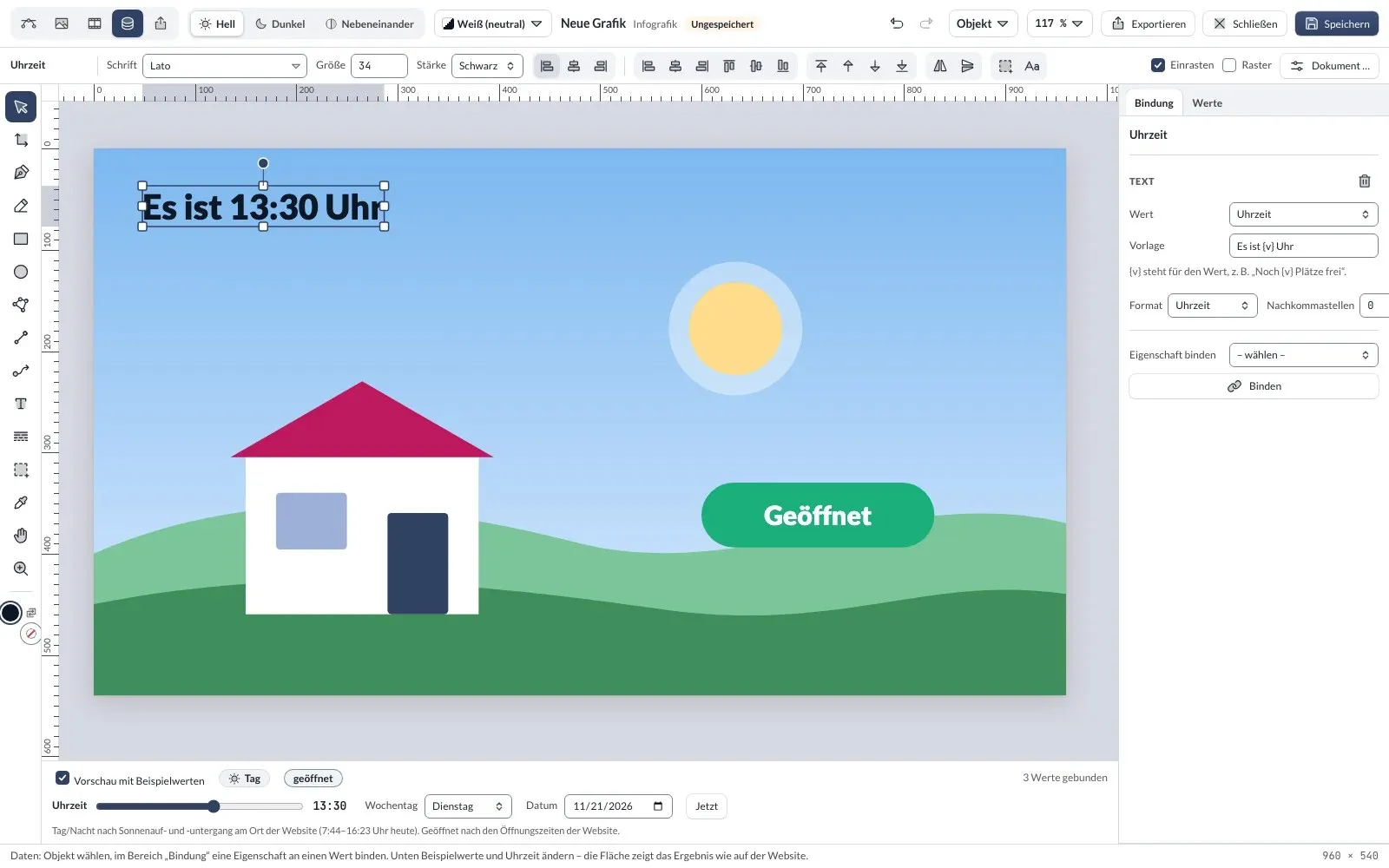
Data persona: text, sun and sign follow the time of day, day and night and the opening hours – checked with sample values. -
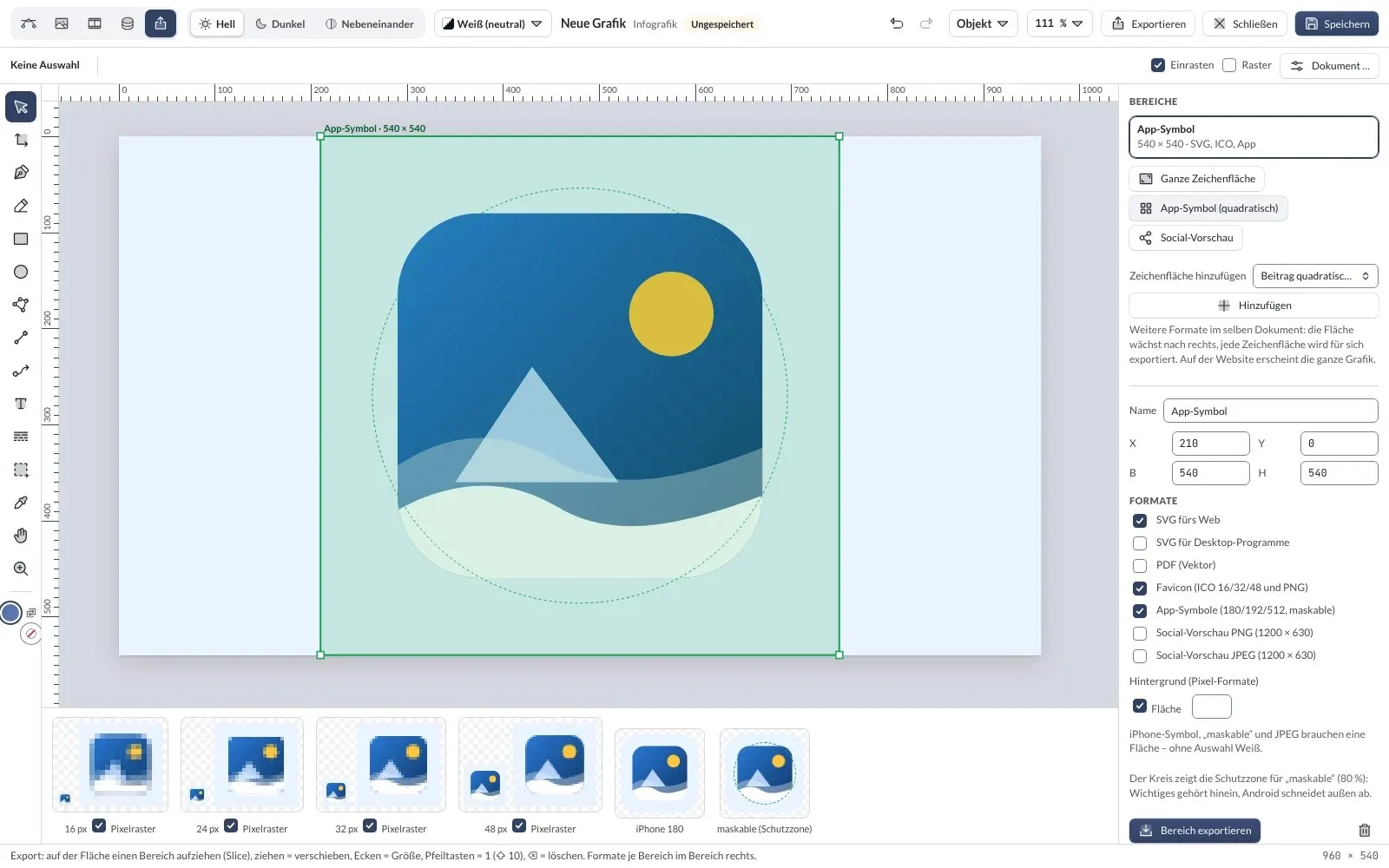
Export persona: one slice for favicon and app icons, with a preview per size. -
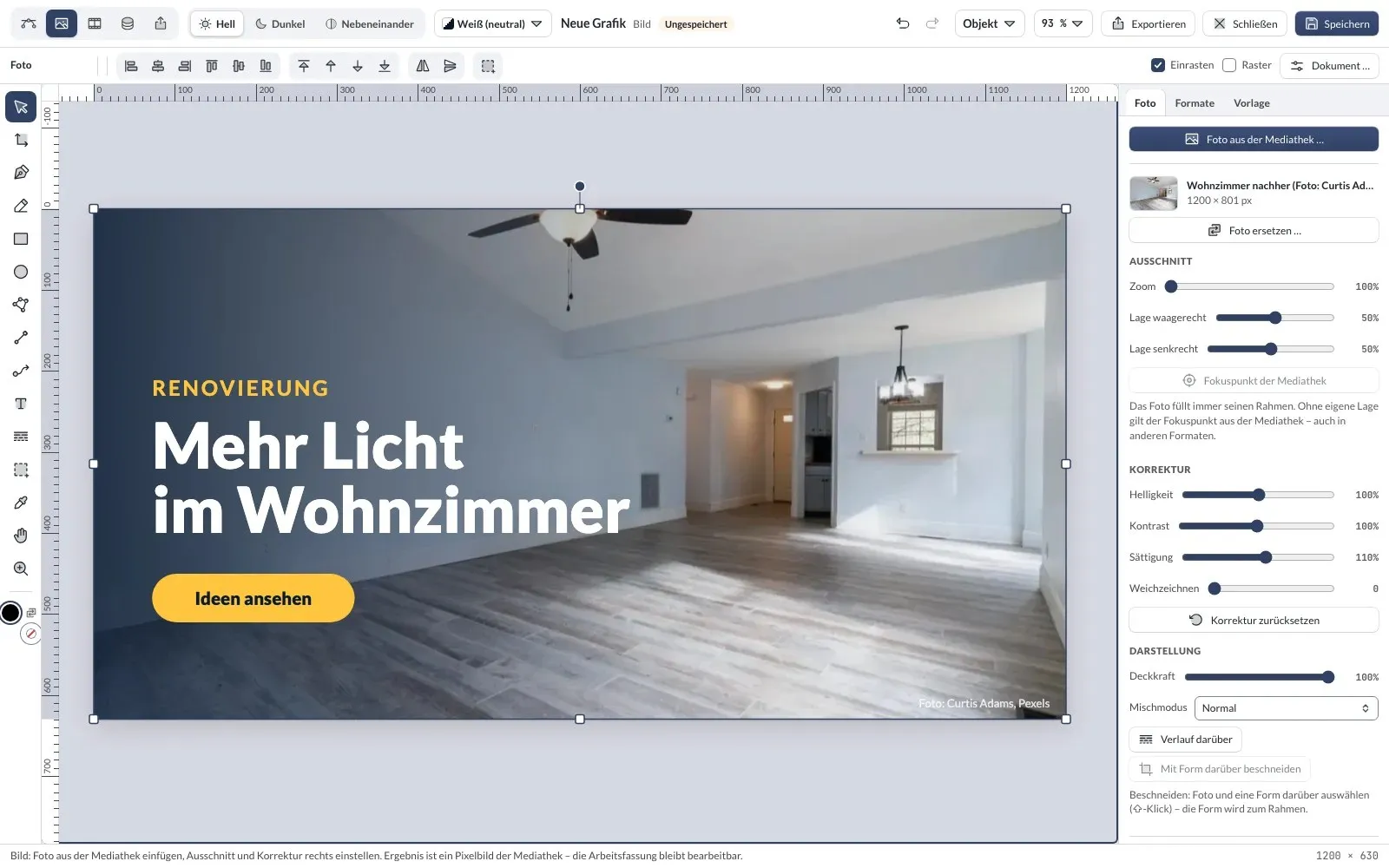
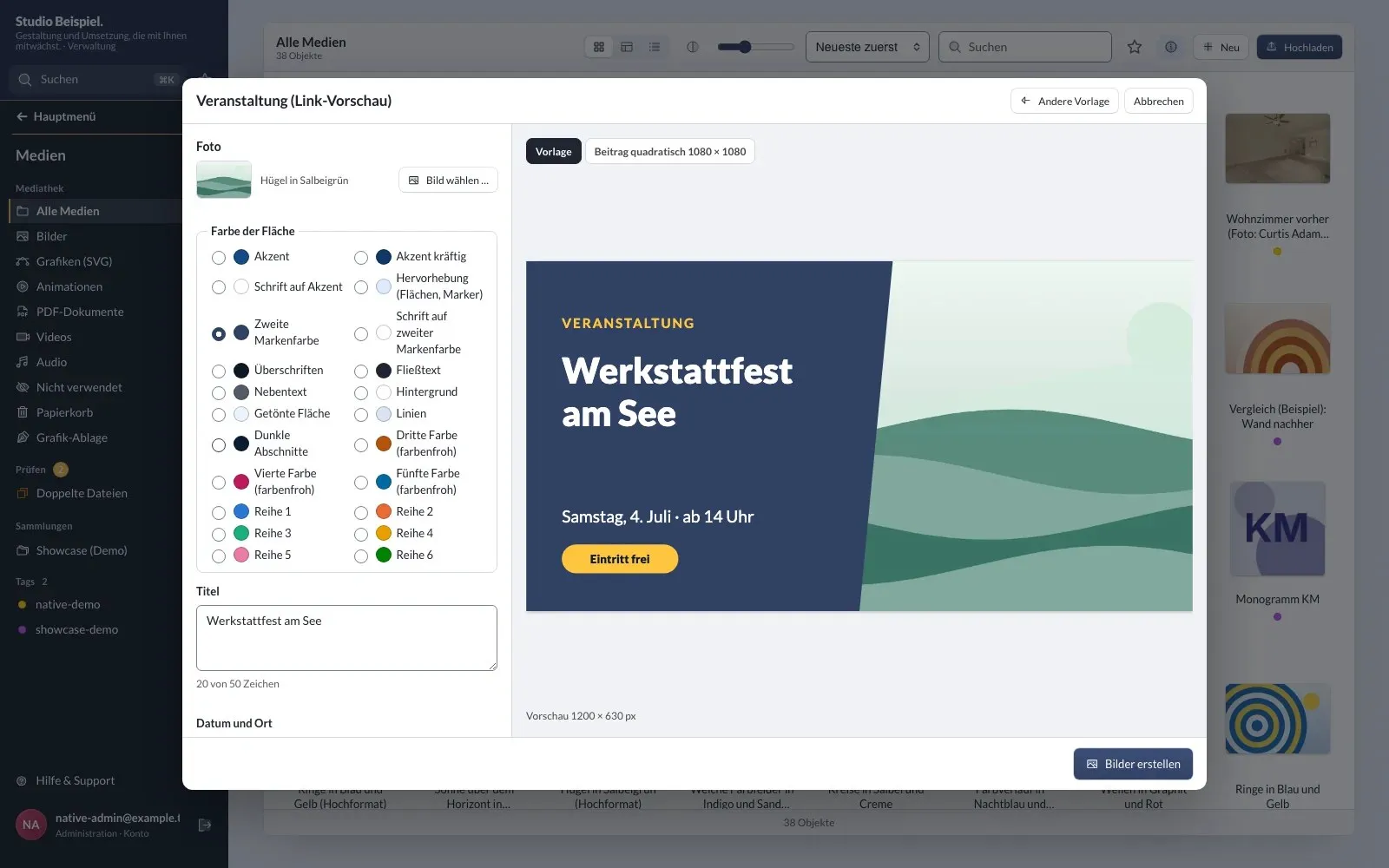
Image persona: a photo from the media library with text and a button – the result is an image in the media library. -
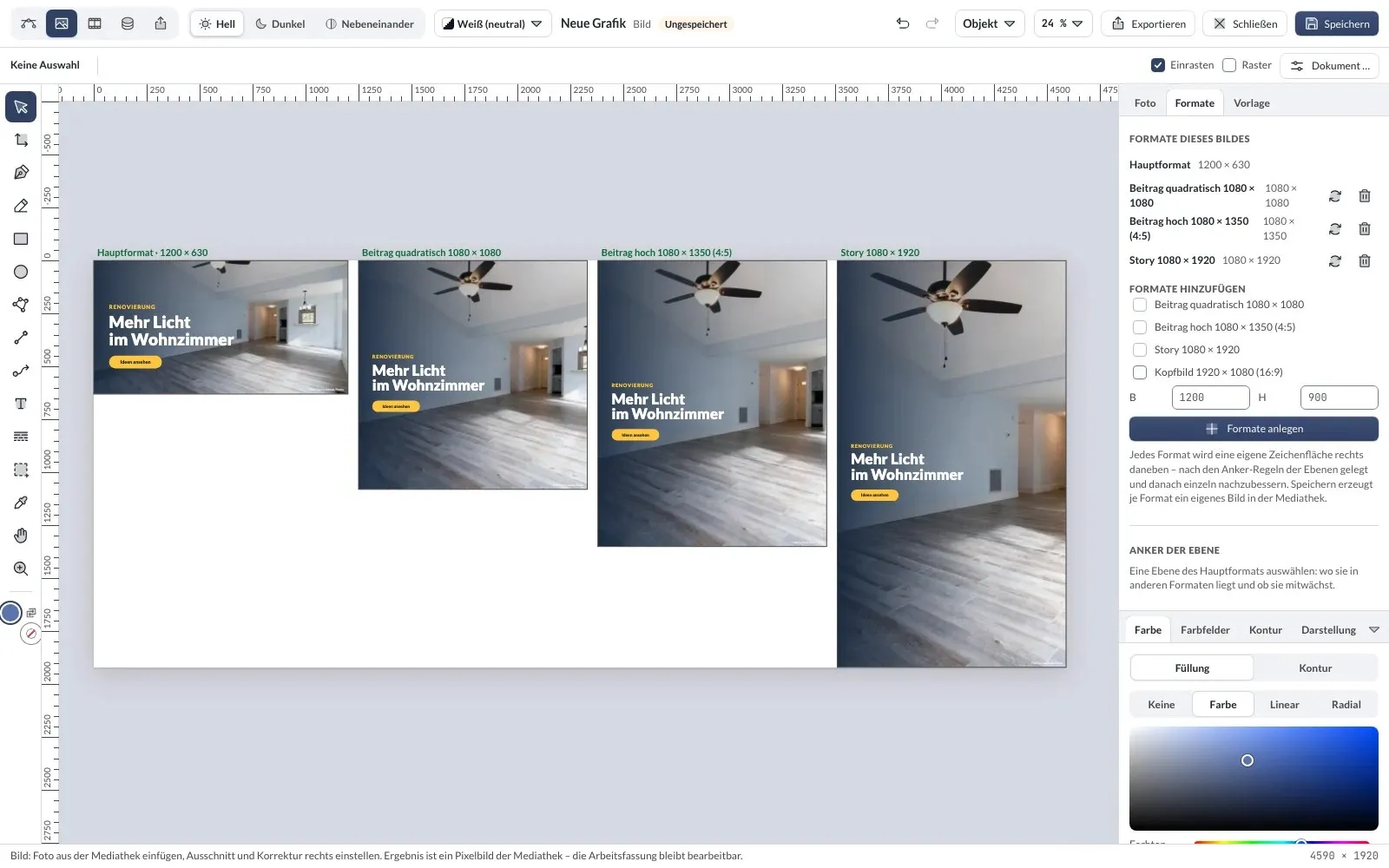
Formats from one design: link preview, square post, portrait post and story. -
Template to fill in: editors choose photo, colour and title, the preview shows every format. -
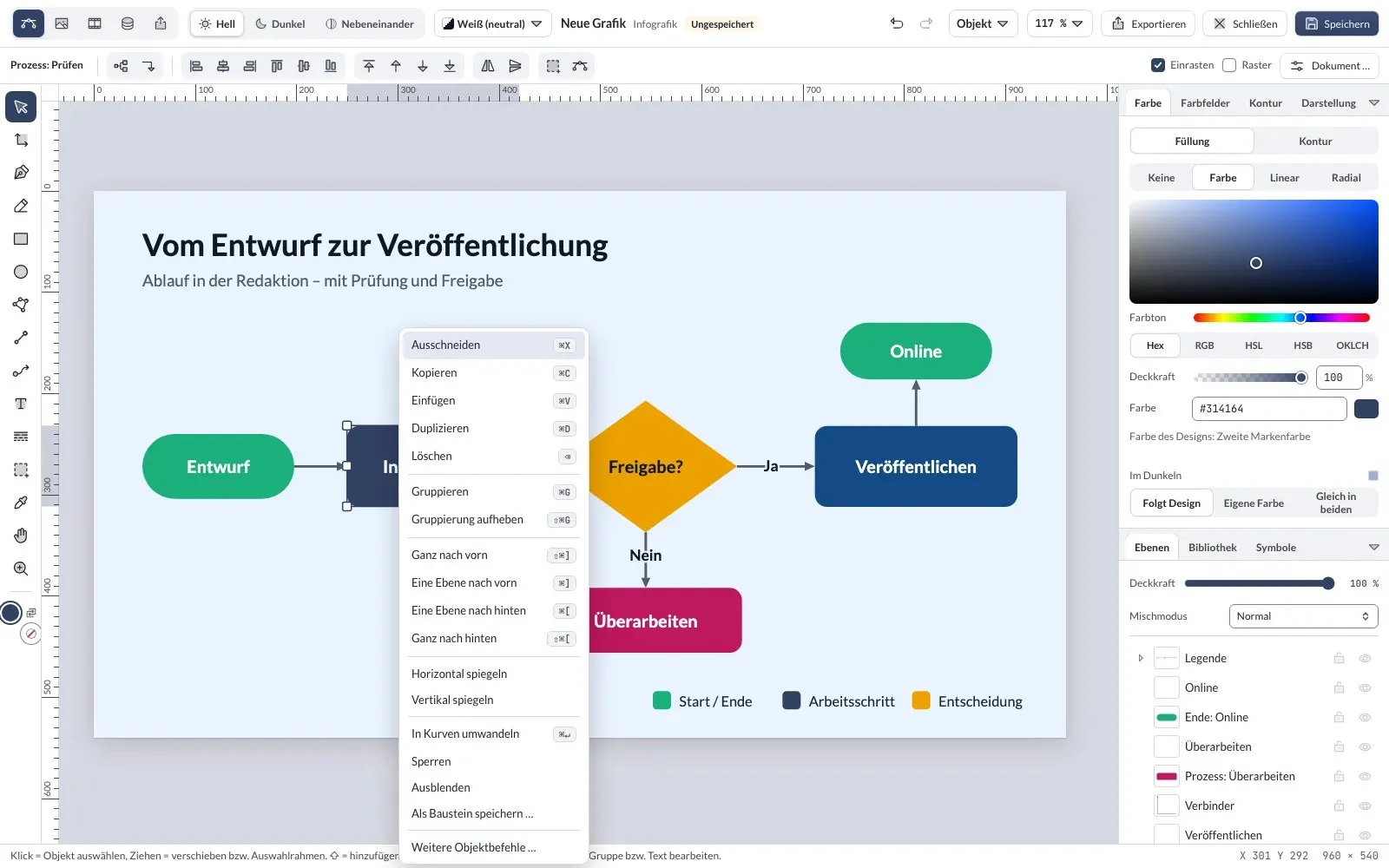
Context menu on the canvas with the usual commands.
Personas
More than vectors: data, export, image.
-
Data persona
Bind text, size, rotation, colour, opacity and visibility to values from data tableStructured content such as team, events, products or references: entries with the same fixed fields that can appear on several pages – often with a detail page per entry. – count, sum, average or latest entry – or to states: time of day, day and night by the position of the sun at your location, open or closed by the opening hours, weekday and date. The website inserts the values on the server, without JavaScript; text stays text.
-
Export persona
Draw slices and export each one: SVG for the web and for desktop programs, PDF as vector, favicon, app icons (maskable too) and a 1200 × 630 social preview – one by one or as a ZIP. Favicon and app icon can be applied to the website directly.
-
Image persona
Combine photos from the media library with text, shapes and gradients – cropped by the focal point, with brightness, contrast and saturation. The result is an image in the media library while the working file stays editable; saving replaces the image and keeps every usage.
-
Social media formats
From one design: link preview, square and portrait post, story and header image. Anchor rules place the layers per format, then each format can be refined on its own – every format becomes an image of its own.
-
Templates to fill in
The agency designs a template and releases individual layers as fields – image, text, design colour, on/off. Editors only fill in a form in the media library and get finished images in every format; everything else stays locked.
-
Pause button for animations
If motion runs longer than five seconds or loops endlessly, the website shows a real “Pause animation” button – keyboard-operable and announced to screen readers (WCAGInternational W3C guidelines for accessible web content. Level AA of WCAG 2.1 is the basis of the European standard EN 301 549 and thus of the requirements of the European Accessibility Act.w3.org (opens in a new tab) 2.2.2). With “reduce motion” the final frame is shown.
Interactive image
Draw hotspots instead of typing.
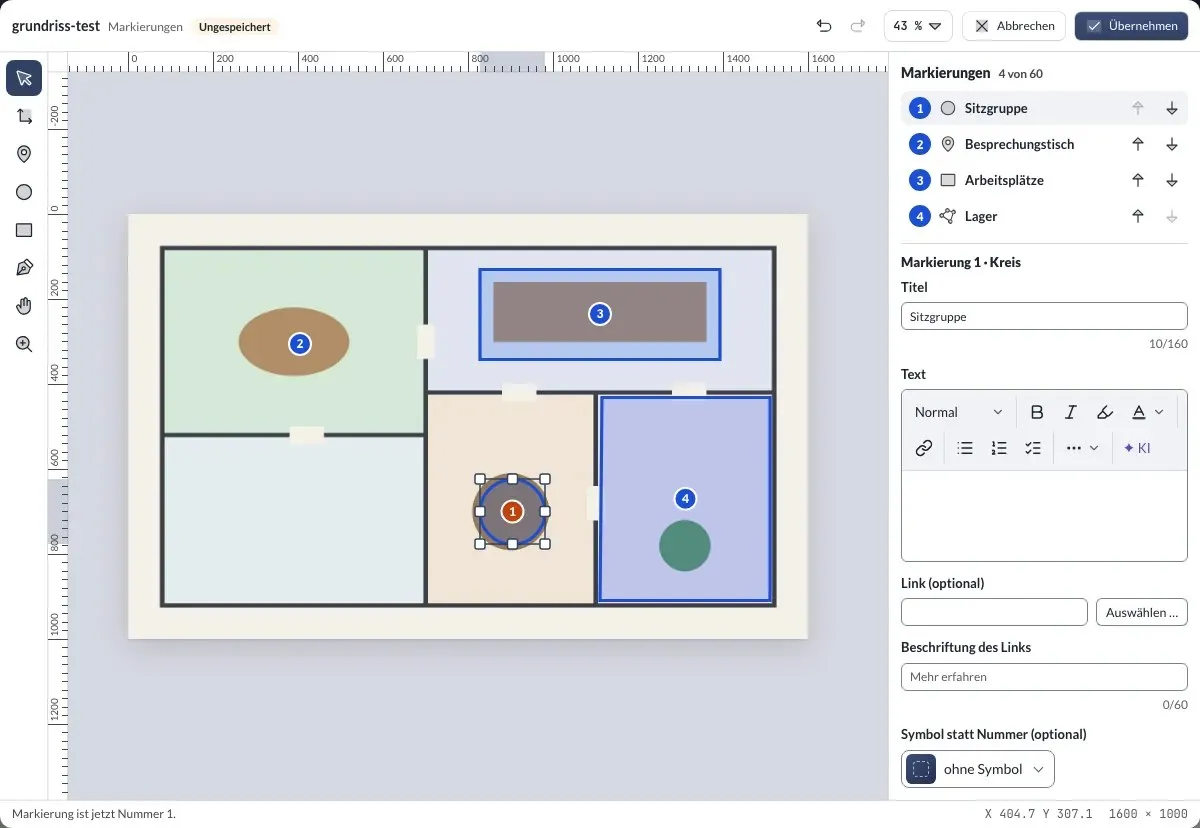
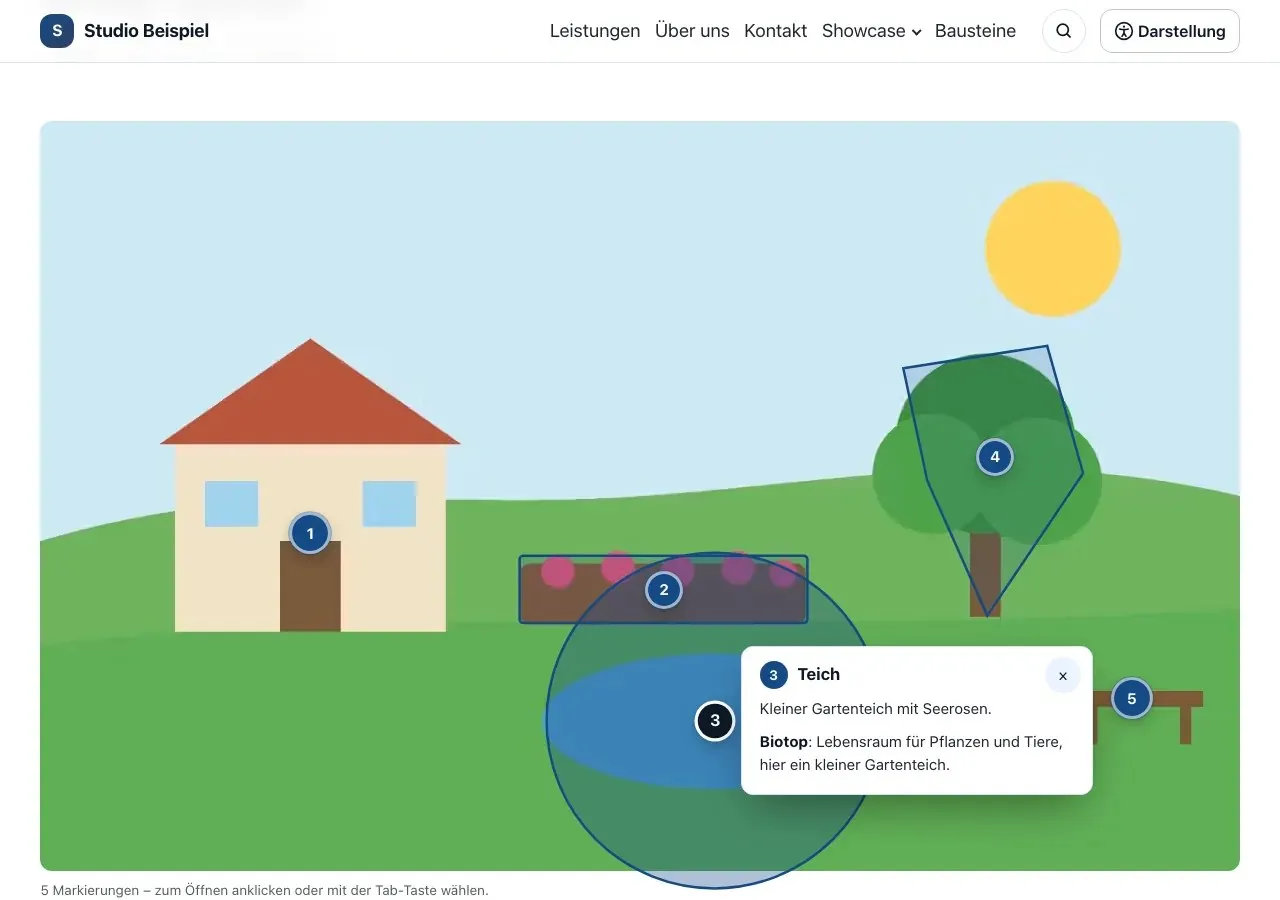
In the “Hotspots” field of the “Interactive image” block, “Open in graphics editor” opens the image as a fixed base. You draw points, circles, rectangles and areas with the editor’s tools; title, text, link, glossary term and icon sit in the sidebar. “Apply” writes everything back to the form. Screenshots from a test installation with fictitious content – click to enlarge.
-
Hotspots in the graphics editor: list in numbered order, fields of the selected hotspot. -
On the website: numbered areas; a click or the Tab key opens the explanation.
Working together
Versions, styles and who is working on it.
-
Compare versions
Compare two versions side by side or overlaid with a slider and restore an earlier one – as a step in the history.
-
Used on
Shows which pages a graphic appears on – with a link and a small preview.
-
Presence
Whoever is editing the graphic right now is shown at the top of the editor. If someone else has saved in the meantime, the editor asks before saving.
-
Object styles
Save fill, stroke, opacity and effects as a style and apply it. When the style changes, every object using it follows.
-
Artboards
More formats in the same document – square post, portrait, social preview, widescreen, A4, app icon – with export per artboard.
-
Context menu
Clipboard, group, arrange, align, flip, convert to curves, lock, hide and “Save as building block” – also via the menu key or Shift+F10.
Package
A package of its own, open (MIT).
-
Not in the core download
The graphics editor is the public package klxm/studio-grafik: install it with Composer (composer require klxm/studio-grafik) and switch it on per website under Features & extensions.
On GitHub: Not in the core download -
Graphics stay visible
Display stays in the core: existing graphics appear unchanged even without the package – with design colours, light and dark, motion and data.
-
General hooks
The editor docks onto the media library and the block picker through general hooks. The same routes are open to every extension.
Block picker
The right block at a glance.
Groups, three views, favourites and a sketch for every block – you design the previews here in the graphics editor.
Contact
Talk to KLXM Crossmedia.
A demo, use in your project or an extension tailored to your needs – get in touch. We answer personally.
Am Schürmannshütt 40g
47441 Moers
Germany
- Phone
- +49 2841 889998-0
- info@klxm.de
- Website
- klxm.de (opens in a new tab)